Company admin and migration¶
Under Settings → Company the boss (or the office manager) runs the company themselves – without Stalwart's admin interface and without IT skills.
Employees and mailboxes¶
- Add employees with a starting password, reset the password and the sign-in with a code, block access (mail keeps arriving), further addresses such as buchhaltung@.
- Shared mailboxes with rights per person: no access, read only, read and send; rules of their own per mailbox.
- Out of office for colleagues (during illness, for example) with a stand-in named in the reply.
- Out-of-office templates under Settings → Company → Out-of-office templates: a few texts
with a title ("Holiday", "Ill") that everyone can pick for their out-of-office reply, and the
company admin under "Set out of office". Kontext fills in
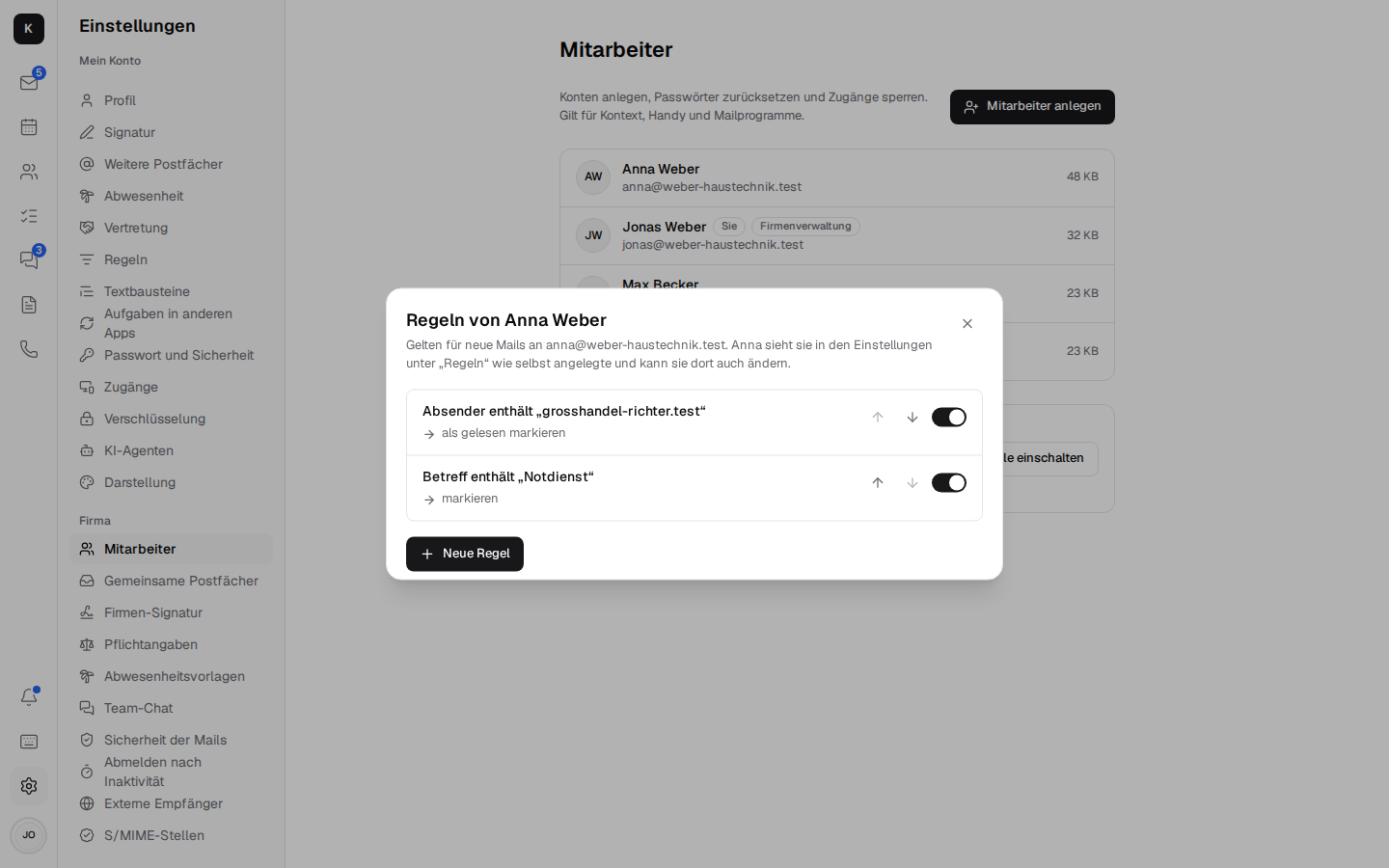
{Name},{Bis}(the last day) and{Vertretung}(the stand-in); a line whose value is missing (no end date, no stand-in) is left out. There are none at first. - Rules for employees: Rules on the person's entry – for example “mail from the supplier into the Orders folder” for a new colleague. These are the same rules as under Settings → Rules of that person: she sees the ones the boss created there like her own and can change or delete them; the other way round, the boss sees hers. “Also apply to mail already in the Inbox” works on her inbox. Only someone allowed to open the company admin can get at other people's rules.
- Company signature for everyone at once, with
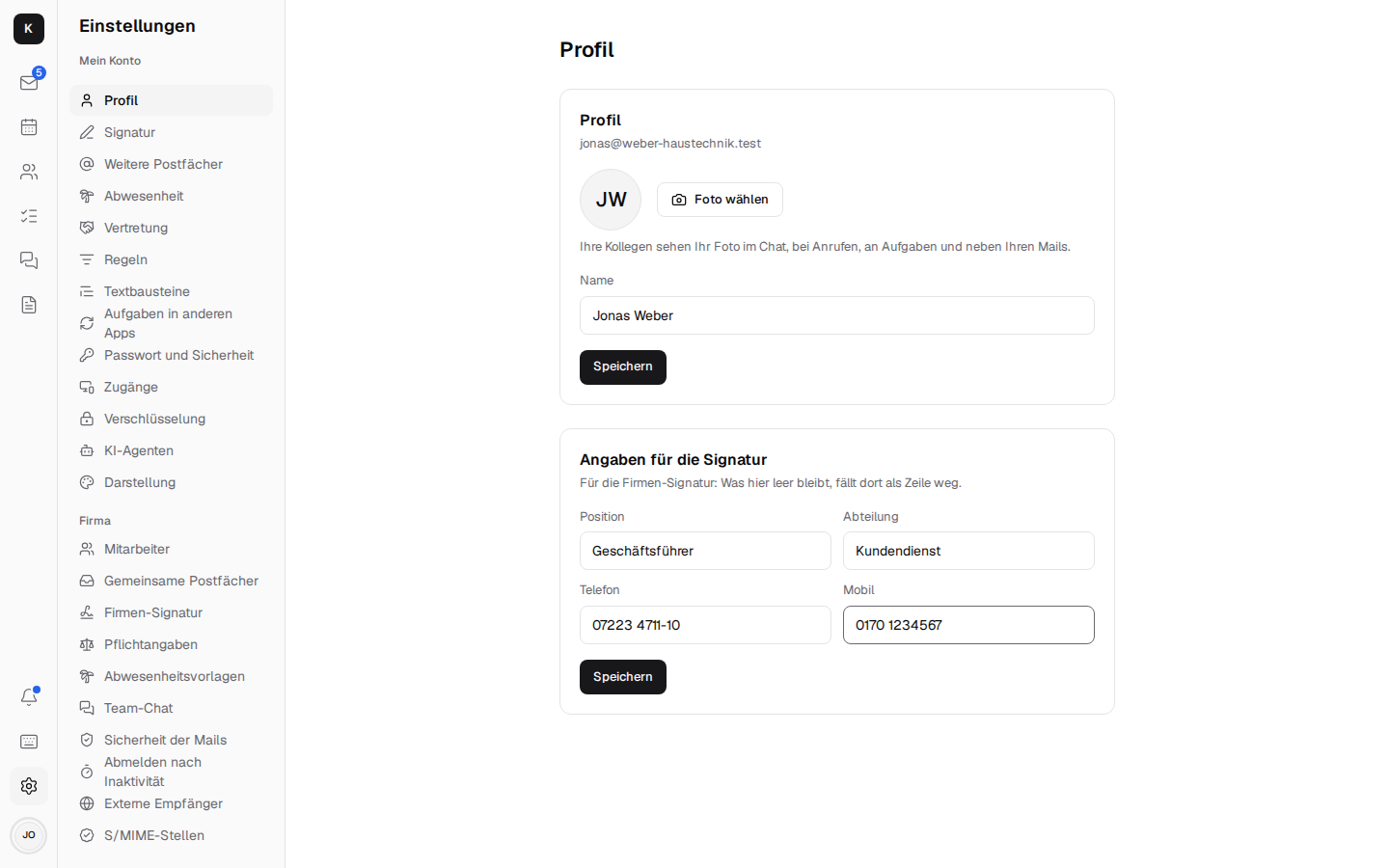
[Name]and[E-Mail]per sender and[Telefon],[Mobil],[Position],[Abteilung](phone, mobile, position, department): each person enters those once under Settings → Profile (“Details for the signature”), and their signature is updated right away. A line whose detail is missing is left out – nobody has “Mobile:” without a number.
- Legal footer under Settings → Company → Legal footer: what has to be under every business mail – company name with legal form, registered office, register court and commercial register number, managing directors, VAT ID (§ 35a GmbHG, § 37a HGB). Once entered, Kontext adds the text under every mail of every employee when sending, also from shared mailboxes, encrypted and signed; unlike the signature, nobody can leave it out or change it. Plain text only, line breaks are kept; when it's empty (as it is at the start), Kontext adds nothing. Whoever sends from another mail program over IMAP and SMTP (on the phone, say) doesn't get it: Kontext can't add anything there.
- Leaving: block access, hand the mailbox over to a colleague, forward new mail and reply automatically – nothing is deleted.
- Availability in the calendar, switched on for everyone.
- Team chat: retention period; telephony: Fritzbox, who is rung, voicemail, opening hours (Telephony).
- External recipients (the “External” hint, off until switched on): mail from outside carries the “External” tag, and before sending or inviting outside, Kontext asks once (Mail). Counted as internal are your own domains and the partner domains entered here (one per line, the tax advisor's office, say).
- Report phishing under Settings → Company → Email security: one address, such as your own IT team's or your IT provider's. Once it is entered, every mail has Report as phishing under "More actions": Kontext sends the mail as an attachment (.eml, with all its headers) to this address, without a copy in "Sent", and moves it to spam. Empty (as it is at first), the item is not there.
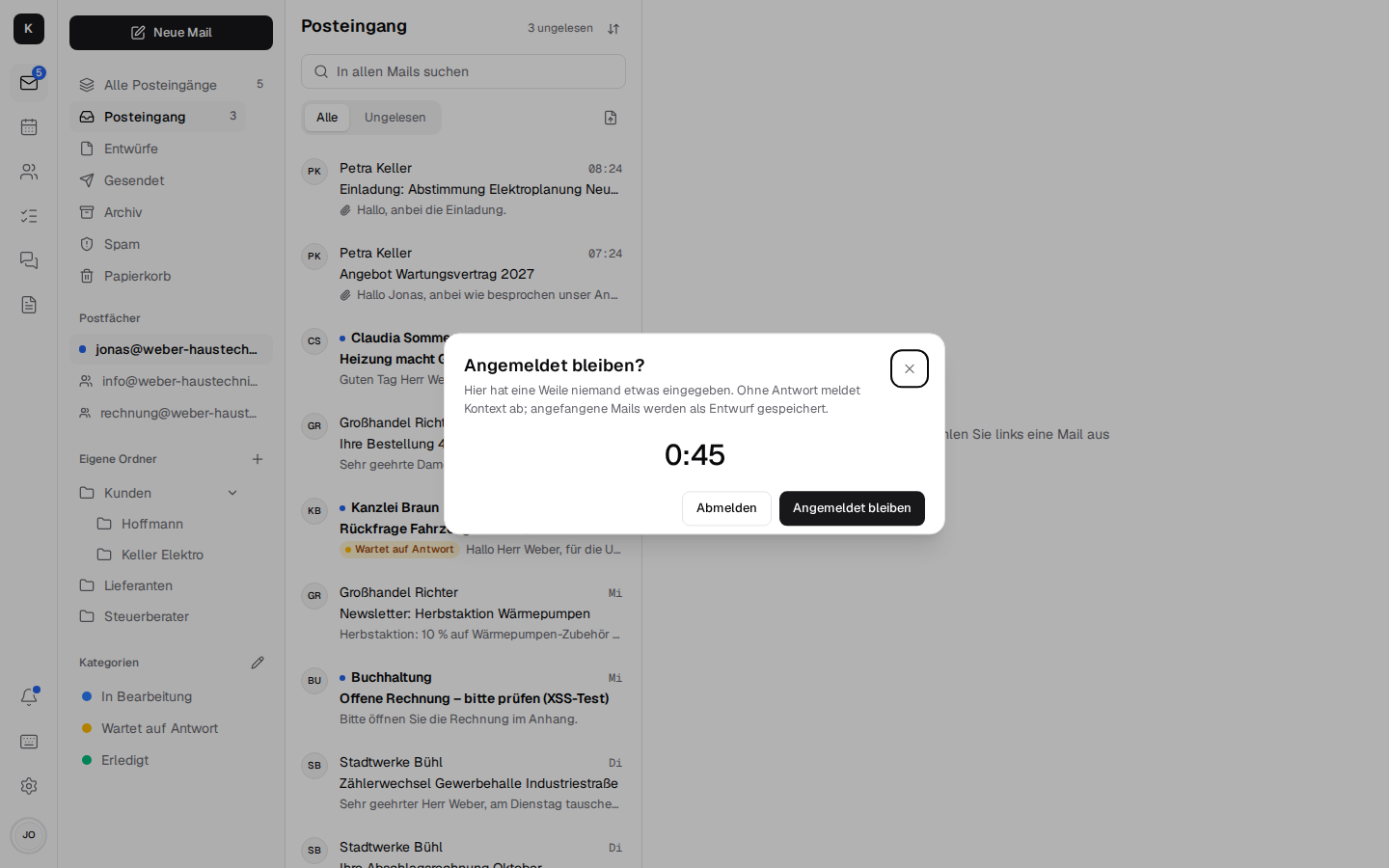
- Sign out after inactivity under Settings → Company → Sign out after inactivity: for computers several people share (reception, front desk). The company admin picks a time – off (as it is at the start), 15 or 30 minutes, 1, 4 or 8 hours. If nobody has moved the mouse, clicked or typed for that long, Kontext asks “Stay signed in?” and counts down one minute (at most half the time for short times). Moving the mouse doesn't answer the question, only “Stay signed in” (or closing it) does. Without an answer, Kontext saves mails being written as drafts and signs out, back to the sign-in. Input in one tab counts for all tabs in the same browser, and so does a running call; if the browser was closed for longer than the time allows, Kontext signs out as soon as it is opened again. Someone who only writes in Documents is asked as well: Kontext doesn't see input inside its own frame. This applies to the web app; mail programs over IMAP and calendar apps over CalDAV stay signed in.
- S/MIME authorities under Settings → Company → S/MIME authorities: certificates of authorities the company trusts for S/MIME, in addition to Mozilla's list – for example the root of a state administration or a chamber (.cer, .crt, .pem). Each is listed with its name, issuer, validity and fingerprint and can be removed again (Encryption).
- Check security: SPF, DMARC, MTA-STS, TLS-RPT, DANE and HTTPS of your own domain (Encryption).
- Encrypt when sending under Settings → Company → Sicherheit der Mails: a switch with which Stalwart itself encrypts mail to recipients outside the company when it knows their key, and the list of those keys – pasted, looked up by Stalwart (Web Key Directory, keys.openpgp.org) or learnt from received mails; each can be removed (Encryption).
- Backup: where the backup goes, how the last run went, how full the storage is, the time of the nightly backup and “Back up now”, plus the log. For this, the units must be set up on the server (Installation → Backups); otherwise it says “Control isn’t set up on the server”.
Moving to Kontext¶
Under Settings → Company → Migration the boss fetches an employee's data from the old system; a migration can safely be repeated, duplicates are skipped.
| From | How | What comes along |
|---|---|---|
| Gmail, GMX, WEB.DE, Telekom, IONOS, STRATO, your own server | IMAP with an (app) password, synced every 15 minutes until the migration is finished | mail with folders or labels and keywords |
| Microsoft 365 | an app in the company's Microsoft account (Graph) | mail with folders and Outlook categories, contacts, appointments and recurring events |
| Outlook (PST file) | upload | mail, contacts, appointments |
| Google export | upload vCard and iCalendar | contacts and calendars |
Whoever wants to keep their old address for good connects it as a further mailbox.
Setup: Installation → Switching on the company admin and Migration. Technical details: Architecture → Company admin and Migration.