App, phone and account
Kontext runs in the browser and can be installed like an app on any device – on the PC, on Android and on the iPhone, without an app store. What is described here everyone sets up themselves, most switches under Settings → Appearance, and they apply to that one device.
Tour on first start
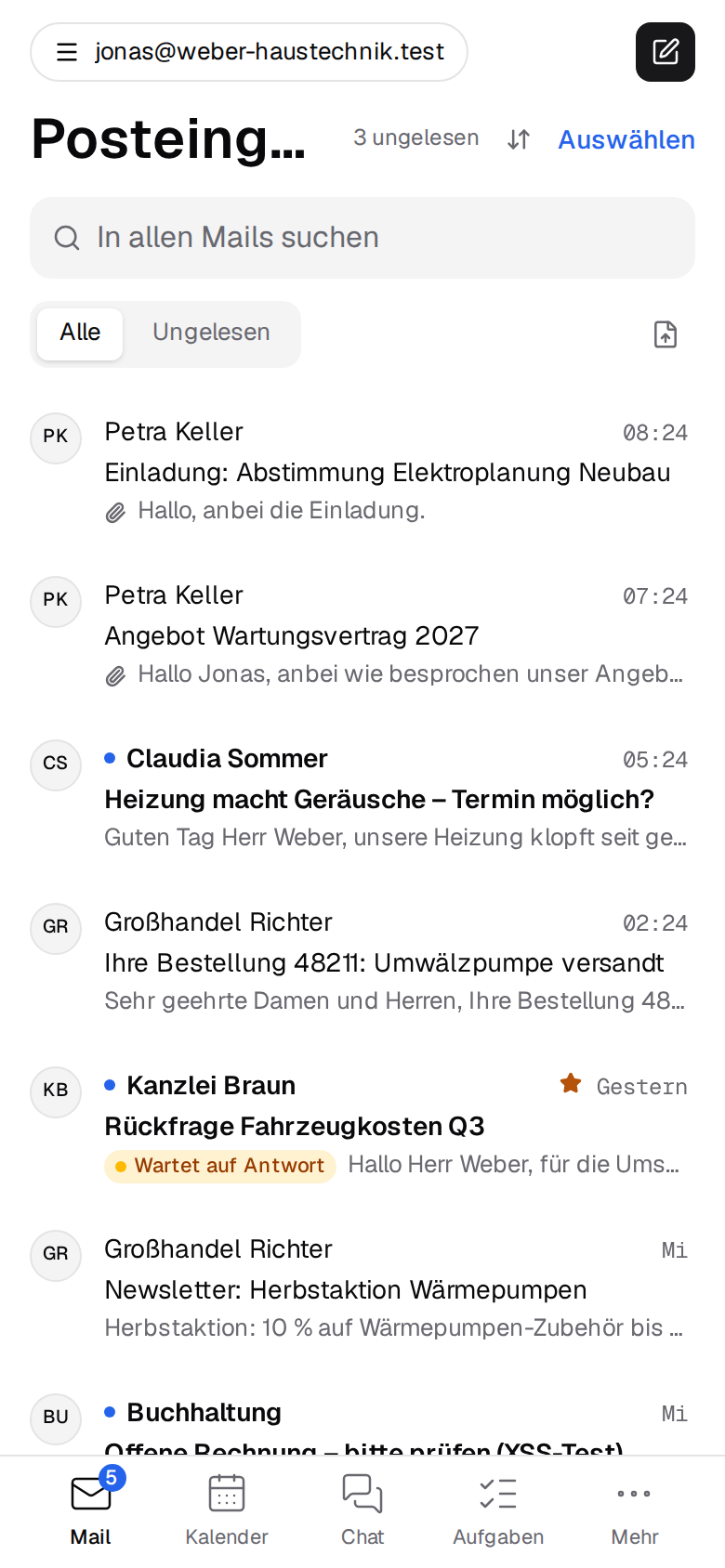
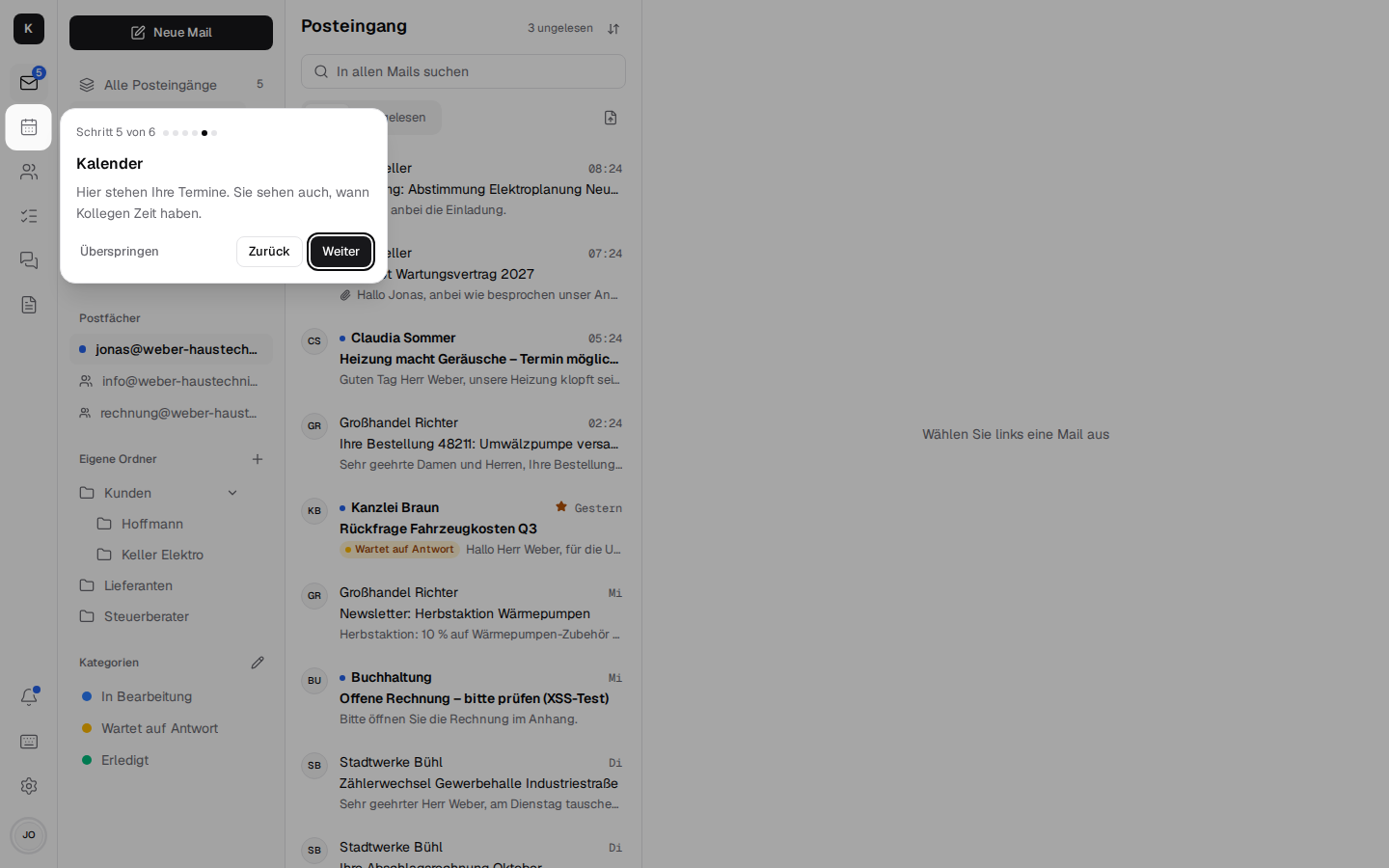
On first start, Kontext shows a short tour in four to six steps: where mail, calendar and chat are, the "New mail" button and – for those who have one – a shared mailbox like info@. Each step highlights the spot it is about: on the PC in the bar on the left, on the phone in the tab bar at the bottom. "Next" and "Back" page through it, "Skip" or Esc end it.
- In a narrow window without the sidebar (between tablet and PC width), the steps about "New mail" and the shared mailboxes are left out, as there is nothing to show there.
- It comes once per person and device; so on the phone once more, because Kontext looks different there.
- To start it again: on the PC in the menu behind the profile picture at the bottom left, on the phone under "More", in both cases "Tour".
Installing as an app
- On the phone, a card at the top of the mail list offers "Kontext as an app on your phone". On Android, "Install" opens the browser's dialog. On iPhone and iPad, tap "Share" in Safari, then "Add to Home Screen"; newer iOS versions only show "Share" after a long tap on the address bar or under "•••".
- On the PC, under Settings → Appearance → App on this device, click "Install as app", or choose "Install app" in the browser menu.
- Once installed, Kontext has a window and an icon of its own, the number of unread mails on the icon (all inboxes together) and shortcuts for New mail, Calendar and Contacts. You stay signed in until you sign out.
- Without a network, the app still starts and says "No connection"; new mails and changes come through as soon as the device is back online.
Notifications
"Notify me on this device" – in the bell at the top, under Settings → Appearance or via the card in the mail list – reports new mails, chat messages to you (direct messages, @mentions), new tasks, reminders for tasks and appointments and incoming calls, even when Kontext is completely closed.
- Under "Notify about new emails from", mailboxes can be deselected, such as info@ for someone who only helps out there; this applies to all of the person's devices.
- On iPhone and iPad, notifications only work in the installed app.
- If the browser blocks them, allow them for Kontext in the browser's site settings.
- When an appointment reminds you, and whether by notification or email, is set on the appointment (Reminder per appointment).
- The bell itself shows unread mails of the last few days, open invitations and today's appointments, and under "Shares and changes" what Stalwart reports: "Anna Weber shared a calendar with you" or "Sandra Klein moved “Maintenance”" (also changed, cancelled) – for appointments someone else changed in a calendar one sees. A click opens it and takes the entry out of the bell, on every device. More on this in the architecture.
On the phone
- Every view is a screen of its own; at the bottom is the tab bar with four apps and "More", at first Mail, Calendar, Chat and Tasks. Under Settings → Appearance → Tab bar on phone you choose an app per slot; all others are under "More". "Reset" puts the bar back as it was at first.
- A number on the app in the tab bar shows where a notification belongs: unread mails (the same number as "All inboxes" and on the app icon), invitations for the next two weeks waiting for a reply, newly assigned tasks and unread chat messages. If the app is under "More", "More" carries the number. On the PC, the same numbers are on the bar on the left.
- "Back" and swiping from the edge go back to where you came from, such as from the conversation to the list.
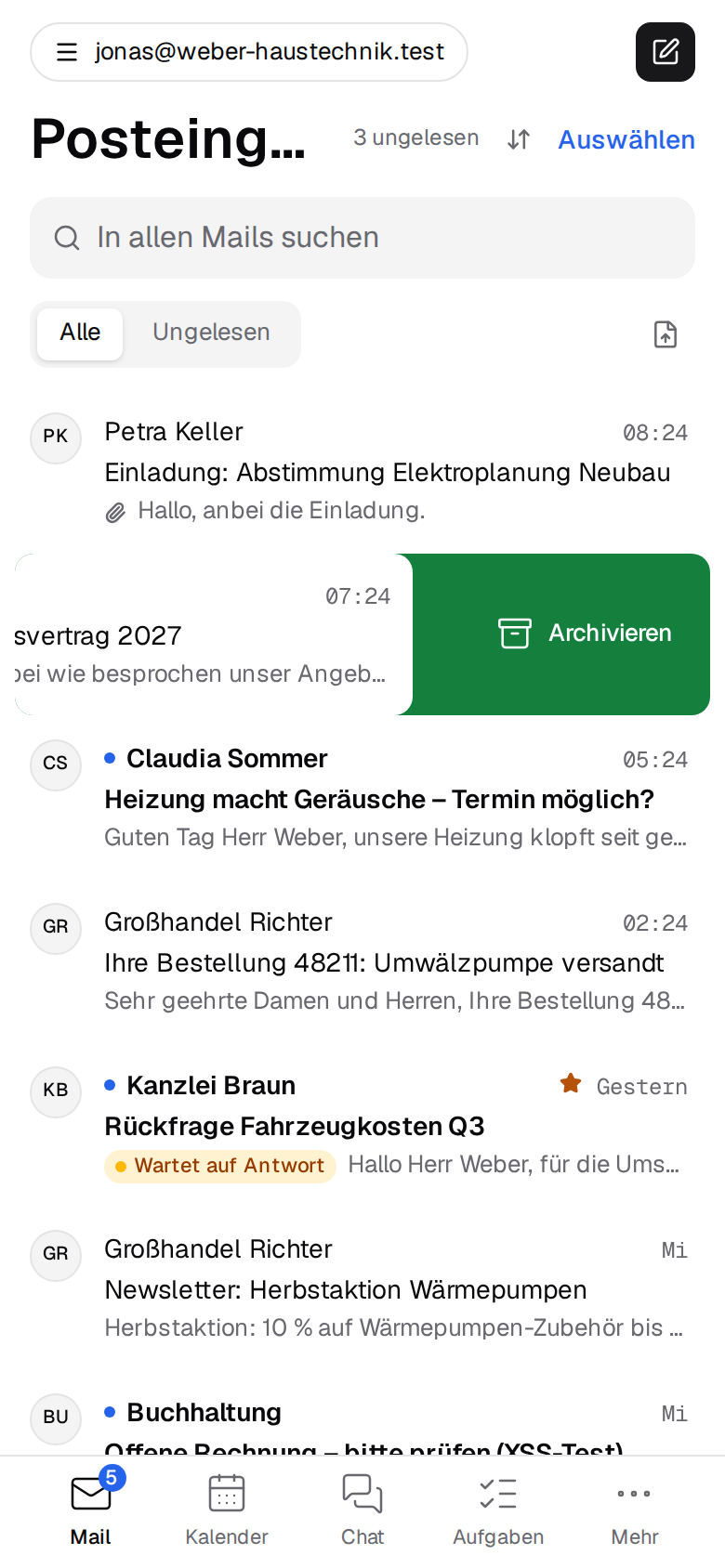
- Swiping mails: in the mail list, swiping a mail to the left archives it, to the right marks it read or unread. What each direction does (Archive, Delete, Read / unread, Flag or Nothing) is set under Settings → Appearance → Swiping in the mail list, per device. It only counts from about a third of the width; shorter, the row snaps back. An unread row shown as a conversation is marked read with all its unread mails. If a long press has selected the mail, the finger no longer swipes after that.
 - Sharing into Kontext: Kontext appears in other apps' share menu. Shared photos, files, texts
and links Kontext shows first; "Use in new mail" opens a new mail with them as attachments.
Appearance
- Color theme: "Same as device", "Light" or "Dark", per device.
- Language: "Same as device" (the browser's language), "Deutsch" or "English", per device; when switching, Kontext reloads. Dates, times and numbers follow the language (English with the day before the month and the 24-hour clock).
- Mail: "Group emails into conversations" and how long "Undo send" holds a mail back (see Mail).
- Swiping in the mail list: what swiping left and right does on the phone (see On the phone).
- Keyboard shortcuts are at the bottom of the same page; on the PC,
?shows them everywhere.
Using it as the mail program
A click on an email address on a web page (mailto:) then opens a new mail in Kontext. The
installed app registers for this through its manifest; in the browser, click "Use as email app"
under Settings → Appearance → App on this device, and the browser asks whether Kontext should
open email links. The button only appears in browsers that can do this.
Version and updates
Settings → Appearance → App on this device shows which version is running on the device ("Kontext 0.1.6"). If a newer one is already running on the server, it is shown below. A new version announces itself with "A new version of Kontext is available." and only takes over after "Reload" – that way a mail you have started isn't lost. If all windows are closed, the new one starts the next time anyway. Updates of the server are installed by the operator (Installation, updates).
Profile, password and sign-in with code
- Profile (Settings → Profile): name and photo. Colleagues see the photo in the chat, on calls, on tasks and next to the mails.
- Change password under Settings → Password and security: with the current password and the new one twice. It applies to Kontext, phones and mail programs.
- Sign-in with code on the same page: in addition to the password, Kontext asks for a code from an authenticator app (e.g. Google Authenticator, Microsoft Authenticator, 1Password). "Set up", scan the QR code with the app (or enter the key by hand), enter the code shown and the password, "Turn on". Turning it off needs the password and a current code. The page shows at a glance whether it is on.
- Access (Settings → Access): who and what accesses your account, in one place. The signed-in browsers ("Firefox on Windows", "Safari on iPhone") with "signed in", "last active" and IP address; your own is marked "This device". Each other one can be signed out on its own, or all others at once – after losing a phone, say. Plus other programs that signed in to the mail server directly via OAuth ("Revoke access"), the app passwords, the AI agents and the other mailboxes, each with a way to where they are managed. More
- Lost the phone with the authenticator app: the company admin resets the sign-in with code (Settings → Company → Employees); after that you sign in with the password only again and set up the code anew (company admin).
- Mail programs and phones keep connecting directly to the mail server (IMAP, SMTP, CalDAV, CardDAV); tasks are there as CalDAV task lists (Tasks).